
Google Business Profile special hours let you record date-specific opening changes without rewriting your normal weekly schedule. For a Mumbai business, the useful workflow is to confirm the actual operating plan, update the appropriate hours setting, check what customers see, and align booking and enquiry responses. The job is finished when the published information matches what your team can deliver.
A shop that closes early for a staff event, for example, needs more than a social post. Someone following its Google Maps opening hours may never see that announcement. This guide explains the settings and gives you a practical approval and verification checklist.
Platform guidance checked on 1 November 2026. Examples below are hypothetical and do not describe Digi Amenity client results.
What should you confirm before changing Google Business Profile special hours?
Start with the person responsible for opening the location. Marketing should not infer the schedule from a public holiday list or last year’s social post. A public holiday, a building-access restriction and a business closure are different things.
Ask four concrete questions: Will customers be able to visit? Will the advertised service be available? Who will answer enquiries? When does the usual schedule resume? Record each answer for the correct branch. A chain can have different operating plans at different locations even when it uses one central marketing team.
For a Mumbai showroom, a reduced staffing day could still allow browsing but prevent consultations. For a repair business, the office may answer calls while field appointments are unavailable. Resolve those distinctions before describing the business as open. Do not use longer hours simply to look more available.
Google asks businesses to represent their real customer-facing hours. Its guidelines also identify business types that generally should not supply hours, including appointment-only businesses and businesses with varied activity schedules. Check the official business representation guidelines if that describes your operation.
Special hours vs More hours: which setting fits?
These controls solve different problems. Use the business situation to choose the field, rather than placing every schedule change in the first field you find.
- Main hours: your normal weekly customer-facing schedule. Review these when the underlying routine changes.
- Special hours: exceptions for particular dates. Google supports short closures of up to six consecutive days; a closure of seven or more days, or an unknown duration, calls for the Temporarily closed setting.
- More hours: separate times for supported services, such as delivery or takeout. These are not a replacement for date-specific exceptions.
Google explains the controls in its business-hours guide and special-hours instructions. Before saving, check every hours field you actually use; do not assume a change in one field has resolved every service’s schedule.
The same distinction applies internally. Your sales desk, collection counter and customer support may each follow a different plan. One generic “open” message can create expectations that the operational team cannot meet.
How do you update business hours on Google for a specific date?
- Open the correct Business Profile using its managing account.
- Choose Edit profile → Hours → Special hours.
- Review a suggested date or add the required date.
- Enter the approved times, or mark the date closed. Add another interval if needed.
- Save, then check the recorded date and times.
Special hours require the profile’s main-hours setting to be enabled. Google recommends confirming holiday hours even when unchanged. Follow its current instructions if labels differ in your account.
Before moving on, compare the saved values with the approved schedule. Pay particular attention to AM/PM, the selected year, the branch name and any separate opening intervals. A successful save does not prove that you chose the correct values.
For overnight trading or bulk uploads, use Google’s detailed instructions linked above. Those cases deserve a separate check rather than a quick copy-and-paste of another location’s setup.
A simple approval-to-verification workflow
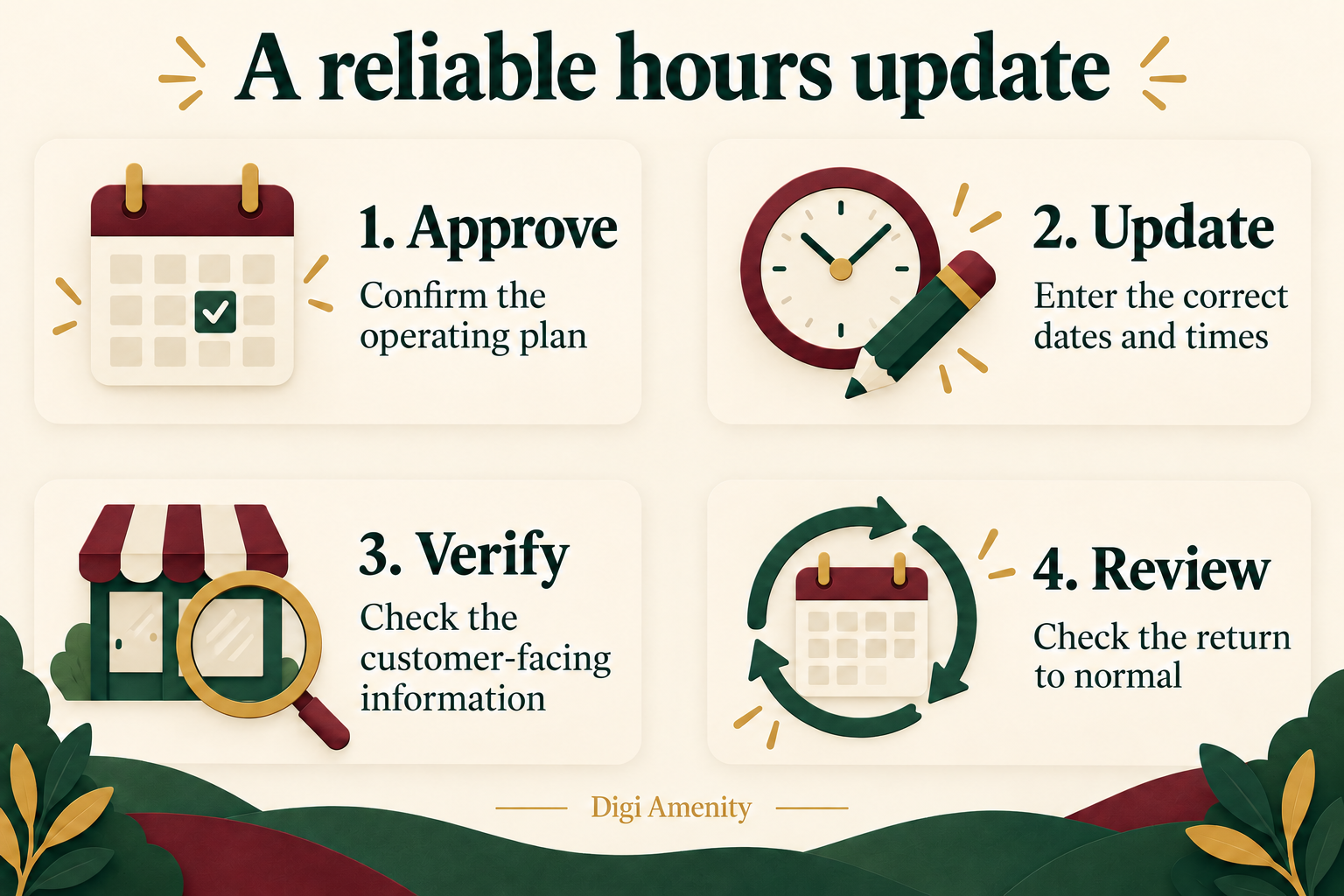
1. Approve the operating plan
Assign a branch owner and a marketing editor. The owner confirms availability; the editor updates the information. In a small business, one person can do both jobs, but the two checks still matter.
Keep the approval in a shared place that the relevant staff can access. It can be a short email or an internal worksheet. The useful evidence is a dated decision naming the location and service, not a long document.
2. Update the customer touchpoints
After editing the profile, check the website contact page, appointment calendar, relevant social announcement, telephone message and WhatsApp response. Update only the touchpoints that would otherwise contradict the approved plan. Do not redesign a page or rewrite every business description to communicate a temporary exception.
If customers need an explanation, a short announcement can support the hours information. Our Google Business Profile posts guide explains how to plan useful updates. A post should explain the situation; the hours fields should carry the actual schedule.
3. Verify the public experience
Inspect the business on Search and Maps from a customer-facing view. Expand its hours information where available and check the relevant date rather than relying only on today’s open/closed label. Record what was visible and when you checked it.
Then follow the next step a customer would take. Is the booking page offering unavailable slots? Does the enquiry response promise a same-day callback when nobody will be working? Does the collection instruction send someone to a closed branch? Fixing those contradictions is part of making the hours useful.
4. Review after the exception
Set a reminder for the next normal operating day. Check that the public information and team responses reflect the usual schedule. Remove an expired website notice when appropriate, while keeping the internal change record.
This review is especially useful when a temporary workaround was applied outside Google—for example, a pinned social announcement or a manual reply template. Those changes can outlive the event unless someone owns the cleanup.
Copy this special-hours approval worksheet
Use one record per location and affected date. This is an operational worksheet, not a Google bulk-import template.
- Location: business name, branch and profile link.
- Date: full date including year; local time zone.
- Customer-facing plan: closed, unchanged or approved opening intervals.
- Service exceptions: appointment, delivery, collection or support differences.
- Approver: name, approval date and evidence reference.
- Editor: responsible person and intended update date.
- Saved check: values checked against approval; timestamp.
- Public check: Search/Maps observation and evidence reference.
- Connected checks: website, bookings, phone and enquiry response.
- Return-to-normal review: owner, date and unresolved issues.
Useful statuses are Awaiting approval, Approved, Saved—verification pending, Verified and Needs investigation. Keep the third status: it prevents an edit from being treated as complete before anyone has checked the customer experience.
Hypothetical example: a Mumbai store with a staff event
Suppose a store normally serves customers from 10am to 8pm. On one agreed date, it will open from 10am to 1pm, close for a staff event, and reopen from 5pm to 8pm. These times are illustrative; they are not a recommendation for a particular holiday.
The store manager approves both intervals. The marketing editor records the exception and checks the saved schedule. The booking owner removes consultation slots during the closure, and the customer service team uses a response that states when staff will return.
The verification should test the awkward case: a customer planning to arrive at 3pm. If Google shows the break but the booking page still accepts a 3pm appointment, the process is incomplete. If the opening information is correct but a phone message still says “open all day,” it is incomplete for a different reason.
On the following normal trading day, the owner checks the profile and removes any expired notice. The worksheet records completion. No improvement in rankings or revenue is assumed; the immediate outcome is that the information matches the approved operating plan.
What if the hours look wrong after you save?
Diagnose the discrepancy before making repeated edits. First establish whether the problem is in the saved value, the public display or another customer touchpoint.
- Wrong saved value: compare the branch, date, year and intervals against the approval, then correct that specific error.
- Correct value, uncertain public display: record the exact observation, check whether you are viewing the intended profile and date, and inspect any pending or rejected edit notice.
- Different service schedule: inspect the relevant service-hours field and the operational plan rather than changing the main schedule indiscriminately.
- Conflicting website or booking information: give the responsible owner a specific correction with the affected date and page.
- Unresolved profile issue: retain evidence and use the support route shown in Google Business Profile Help.
A useful escalation note says: “The approved date is X; the saved values are Y; the public view checked at Z shows this.” “Google is wrong” gives the next person little to investigate. Do not promise customers a fixed update time that you have not verified.
If the problem goes beyond opening times, use our Google Business Profile audit checklist to review the wider profile. Keep that investigation separate from the immediate task of preventing a customer from arriving at the wrong time.
How should you measure whether the process is working?
Begin with operational measures you can verify: locations with approved schedules, changes independently checked, contradictory touchpoints found, and unresolved issues before the affected date. Keep the denominator explicit—for example, verified locations out of the locations actually due for a change.
Review customer outcomes separately. Record hours-related complaints or missed appointments only where staff can confirm the cause. A missed call is not automatically an hours error, and a profile interaction is not automatically a qualified enquiry.
For broader reporting, follow the definitions in our Google Business Profile performance guide. Compare like-for-like periods and note changes in promotions, staffing and demand. A holiday week differs from an ordinary week in many ways, so a change in calls cannot be attributed to the hours edit alone.
Do not treat special-hours maintenance as a guaranteed ranking tactic. Its immediate business purpose is accurate availability and a more reliable path from discovery to a visit, booking or conversation.
Frequently asked questions
Who should approve Google Business Profile holiday hours?
The person responsible for actual operations at that location should approve them. Marketing can coordinate and enter the information, but should not guess whether staffing, access or service availability will change.
Should every branch use the same schedule?
Only when every branch has confirmed the same plan. Keep separate records where opening arrangements differ, and verify each affected location rather than assuming one successful edit covers the whole business.
Is a social post enough to explain a closure?
Use an announcement to provide context, while keeping the actual hours information accurate. A customer may encounter the business through a Maps listing, booking link or telephone number without seeing the post.
How far ahead should the team prepare?
Start when the operating plan is approved, with enough time for a second person to verify it and resolve inconsistencies. The right lead time depends on the number of locations and who controls the connected systems; there is no universal internal deadline.
What should the enquiry form say during a closure?
Set a realistic response expectation that the team can honour. If enquiries remain open, distinguish accepting a message from providing immediate service. Check the confirmation message and follow-up responsibility as well as the form itself.
Can a team reuse last year’s schedule?
Use it as a reminder of what to confirm, not as approval. Dates, staffing, branch access and the services offered may have changed. Require a fresh decision before entering this year’s values.
What counts as a completed hours update?
The saved values match the approved plan, the public view has been checked, and important customer touchpoints do not contradict it. Record any display limitation or pending issue instead of marking the record verified prematurely.
Will changing hours guarantee more local enquiries?
No outcome is guaranteed. Availability is only one part of the journey. The offer, profile information, website, booking experience and follow-up also determine whether an interested person becomes a customer.
Make accurate availability part of your local marketing
If customers encounter different opening or response times across your profile, website and booking journey, Digi Amenity can review the inconsistencies and help prioritise corrections through its local SEO support. Start with one affected location, an approved schedule and a clear owner for verification.