

Shopify Flow permissions now require teams to think about two separate questions: who can access automation tools, and who is allowed to use the data and actions inside a particular workflow. If someone can edit a workflow but cannot activate it, first identify the blocked task and its missing permissions. Giving everyone administrator access is a poor substitute for understanding the dependency.
Shopify announced the change on 28 October 2026. For an Indian ecommerce team preparing a campaign, the practical job is to check the person responsible for activation before launch day, document the required access, and confirm the business result after activation. This guide explains the update and provides an audit worksheet you can use with your operations team or agency.
Checked 2 November 2026. Shopify’s detailed Help Center describes a gradual rollout. Confirm the options and permission messages in your own store.
What changed in Shopify Flow permissions?
Shopify’s 28 October announcement says Flow now uses staff permissions managed in the admin. Access is controlled through the Flow automations category in Settings > Users > Roles, while workflow operations are checked against the relevant admin permissions.
The announcement also says workflows that are already on continue running, existing Flow users retain access through automatically assigned Flow permissions, and store owners retain full access. It does not say that every active automation needs to be rebuilt.
That distinction matters. A permissions problem during an edit is not evidence that your order-handling process has stopped. Equally, yesterday’s successful run does not prove that the employee covering tomorrow’s shift can make an approved change. Record execution health and operator access separately.
Which permission layers should you check?
The current staff-permissions guide separates Flow access from workflow-dependent store and app access. Its two Flow controls are View, create, and delete automations and Manage connections and secrets. Access applies across the store’s workflows, rather than being granted to individual workflows.
The guide labels the new controls early access. If your role editor does not show the Flow automations category, it says to continue managing Flow access through the app permission. Do not assume a missing category is a broken installation.
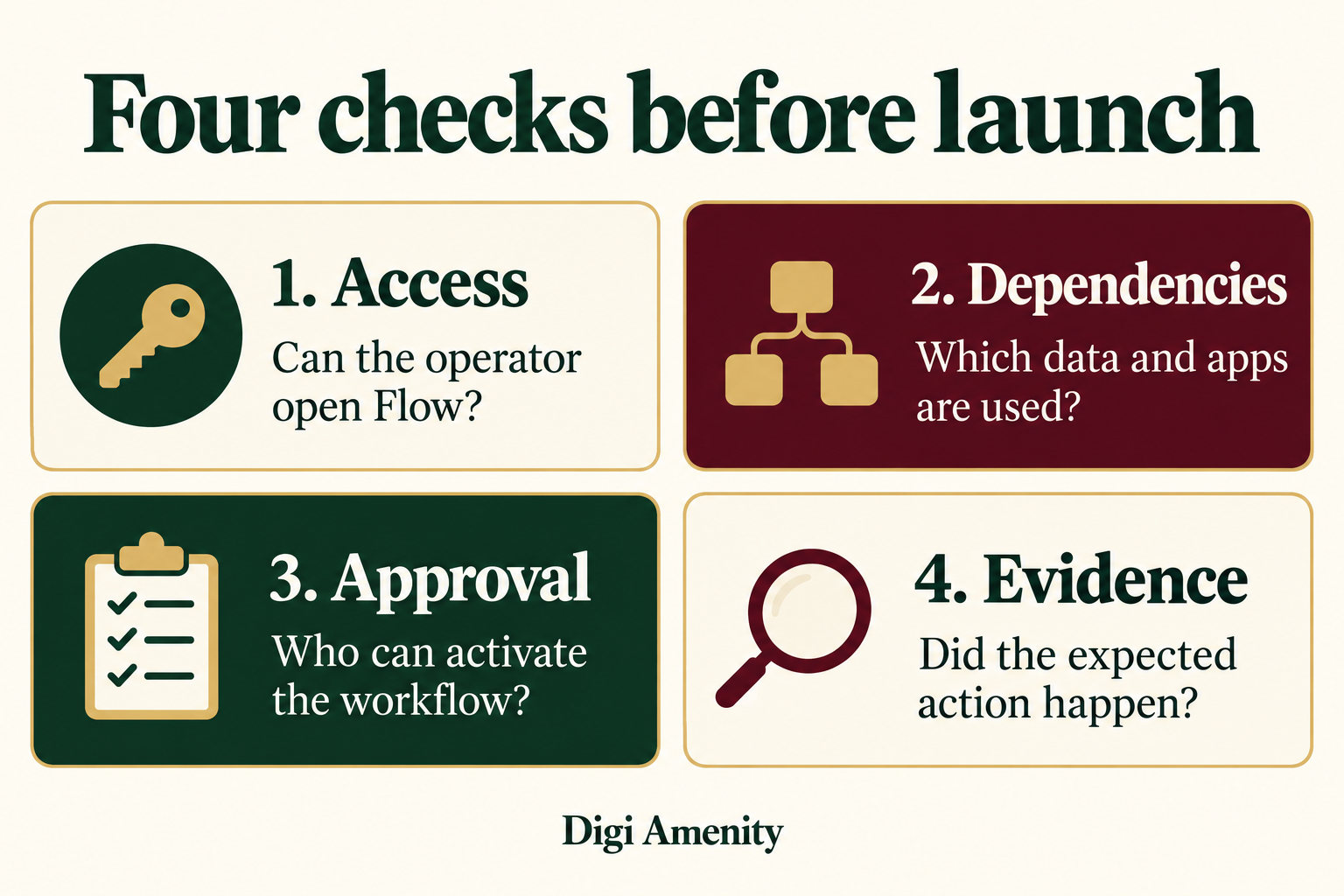
For your audit, draw a simple map: operator → workflow → information read → action performed → connected app. This is your operational map, not a replacement for Shopify’s permission requirements. A marketing job title tells you very little about the access a specific automation needs.
Can someone test a workflow without permission to activate it?
Sometimes. The detailed staff guide distinguishes viewing data during a test from making changes during activation. Its customer-tag example permits testing with customer-view access while withholding activation without suitable customer-change access. Secrets introduce an additional permission requirement.
The announcement’s wording is broader, so avoid the blanket claim that every test requires every write permission. Use the current workflow’s missing-permission message and the detailed documentation for the exact operation. If they disagree in your store, preserve the message and ask Shopify support to clarify before changing access.
A sensible internal release rule is to separate three sign-offs: logic reviewed, permitted test reviewed, and live action authorised. A passing test should not silently become permission to contact customers, change stock, or send information to another service.
How should an ecommerce team audit its automations?
Start with the workflows whose interruption would affect customers or a campaign decision. Examples might include an order handoff, an inventory alert, a customer classification, or an internal exception notification. These are audit candidates, not a recommendation to automate all four.
1. Describe the business outcome in one sentence
“Route eligible orders to an operations review queue” is clearer than “fix Flow.” Define which record should change, which team should see it, and what counts as an incorrect outcome. If a workflow exists only because someone once requested it, confirm whether the business still needs it before expanding its access.
Map the dependency to the customer journey. A campaign can generate good traffic while an internal handoff delays fulfilment or follow-up. The automation’s purpose should connect to that specific problem; it should not be evaluated solely by the number of successful executions.
2. Identify the operator and backup
Name the person who will review a change, the person authorised to activate it, and the backup when either is unavailable. These roles can belong to the same person in a small business, but the responsibilities should still be explicit.
Check the intended account instead of assuming that a test performed by the store owner represents everyone else’s experience. Keep screenshots of permission messages in your internal handoff file, excluding customer details and credentials.
3. Map the data, action and app dependencies
Read each workflow step and list what it reads or changes. Include fields used by conditions, not just the final action. Note external apps and whether a secret or connection is involved. Record the required access shown by Shopify rather than building a generic “marketing administrator” permission bundle.
Shopify’s store-permissions reference explains that permissions can have dependencies and that granting a top-level category can select additional permissions. Review the resulting role, not just the checkbox you initially clicked. Store-level access also generally cannot be restricted to individual orders, products or customers.
4. Resolve the gap with the smallest suitable change
The business owner should decide whether the operator needs additional access or whether an already authorised colleague should handle activation. The useful question is “Who needs to perform this task?” rather than “How can we remove this warning fastest?”
Keep the decision with the workflow record: requested capability, business reason, approver, date and review date. Do not include passwords, tokens or secret values. If an agency’s project ends after a campaign, make the access review part of the project closeout.
5. Check the result after the approved release
Shopify provides workflow-run logs with step details. Its monitoring guide notes that completed runs are retained for 14 days and timestamps use the store’s time zone. Capture the evidence needed for your internal review before it expires.
Inspect the relevant record and destination, not only the overall run status. Did the correct order receive the intended treatment? Did the responsible team receive the expected information? Did an unintended audience or record get included? A workflow can execute its configured logic while the configuration still fails the business requirement.
A hypothetical Indian store handoff
Imagine an Indian home-accessories store preparing a weekend promotion. Its operations coordinator is expected to activate a revised workflow that marks certain orders for manual review. A contractor prepares the logic; the owner normally handles approvals.
Before the campaign, the team discovers that the coordinator can inspect the design but cannot perform the planned activation. They document the exact missing access. The owner chooses to retain activation responsibility rather than giving the coordinator broad permissions solely for this one release.
The handoff now includes a named activation window, an authorised backup, the record that should demonstrate the expected action, and a response plan if the result differs. The team does not assume the permission issue caused any previous order failure.
This is a hypothetical example, not a client result or a tested workflow. Its lesson is about responsibility: remove uncertainty before the campaign depends on an operator who may not have the necessary capability.
Copy this Shopify Flow permission audit worksheet
Use one record per workflow. Store this worksheet internally; it can contain operational details that do not belong in public project notes.
- Workflow and business purpose: name, intended outcome and affected team.
- Current state: active or inactive, checked date, last observed relevant run.
- Operator and backup: named accounts and responsibilities.
- Data read: resources and fields used by the trigger and conditions.
- Changes made: affected records, notifications and destinations.
- App dependencies: app names; connection or secret used—yes/no, never the secret itself.
- Blocked task: opening, testing, activation, editing an active workflow or reviewing a run.
- Evidence: exact message, timestamp and sanitised screenshot.
- Decision: approved role adjustment or authorised-person handoff.
- Verification: expected result, observed result and evidence owner.
- Follow-up: review date, rollback responsibility and unresolved questions.
Pair this with your store’s factual documentation. Our Shopify store-facts audit helps teams identify conflicting information before it enters a customer-facing workflow.
How do you separate access problems from other failures?
A missing-permission message: investigate the named capability and the intended operator. Do not keep changing workflow conditions to solve an access restriction.
No matching event: check whether the expected business event actually occurred. An inactive campaign, a different record type or an incorrect assumption about the trigger can make an automation appear broken.
A condition excludes the record: compare the record’s actual fields with the intended rule. Ask whether the rule or the business expectation is wrong before widening it.
An external destination is wrong: review the destination and integration owner. Avoid repeated retries until you understand whether they could repeat a customer message or another action.
The workflow completes but the outcome disappoints: examine the process around it. For example, checkout recovery depends on the message, consent, offer and purchase journey as well as execution. See our checkout recovery guide for that broader diagnosis.
What should you measure after the audit?
Use a small operations scorecard: critical workflows with a named owner, critical workflows with a verified activation handoff, unresolved access gaps, reviewed outcomes and unintended-action incidents. Count only checks that have evidence.
If you measure time saved, establish a manual baseline and comparable workload first. Do not convert the number of runs into hours saved automatically. One run might do nothing, handle multiple records, or require additional human work.
Keep commercial measures separate: qualified follow-ups, fulfilled orders, recovery revenue or another agreed outcome. Explain the comparison window and other campaign changes. A permissions audit alone does not prove improved sales or advertising return.
Frequently asked questions
Is Shopify Flow only available on Plus?
No. Shopify lists Flow as a free app on Basic, Grow, Advanced and Plus. Some capabilities remain plan-dependent; for example, Send HTTP Request is listed for Grow, Advanced and Plus. Check the current Flow plan requirements before designing a process around a particular action.
Do existing workflows need to be switched on again?
The release announcement says already active workflows keep running. Review their health and the team’s ability to manage them; do not switch them off simply because you are auditing access.
Why can a colleague edit a workflow but not launch it?
Editing access and permission to perform the workflow’s operations are different checks. Use the exact blocked-task message to identify the dependency, then decide who should own that operation.
What if the new Flow category is absent from our store?
The detailed documentation describes a gradual rollout and the older app-permission path for stores without the new category. Record what your store shows rather than forcing instructions for an interface you do not have.
Should we give an agency administrator access?
Start with the agreed work and its actual dependencies. Have the owner review the access requested and assign activation responsibility explicitly. Broad access should have a specific justification, not serve as the default response to an error.
Does a successful test prove the automation is ready?
It provides evidence for the scenario checked. You still need an approved release, representative cases, a clear expected outcome and verification of the relevant destination. Document what the test did not cover.
How often should we repeat the audit?
Review it when workflow logic, staff responsibilities, app connections or campaign requirements change. Add a recurring review suited to your store’s risk and change frequency, and retain an owner for unresolved items.
Before your next campaign
If your Shopify team is unsure who can test, activate or maintain its automations, Digi Amenity can help map the workflow dependencies and release handoff alongside the customer journey. Start with the workflows that matter to your next campaign through our website and ecommerce development support.
