
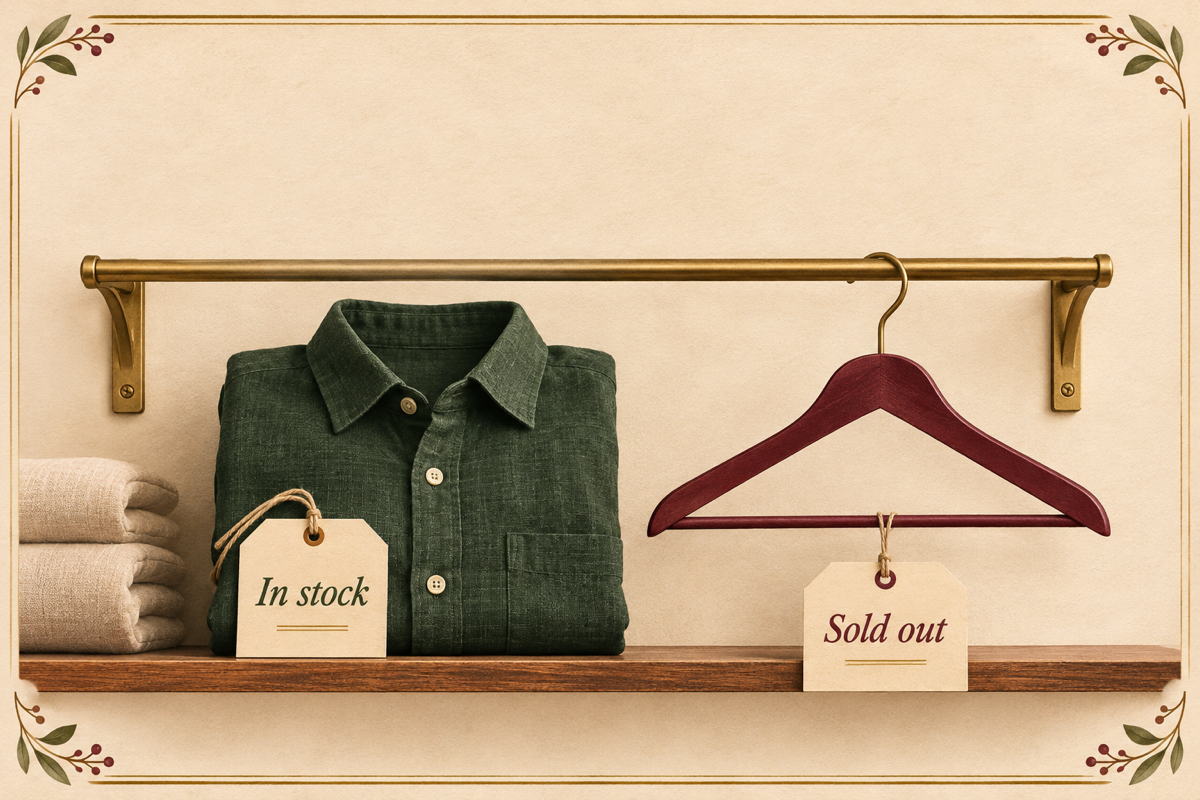
To fix mismatched product availability in Google Merchant Center, open the exact variant URL from the affected offer. Compare the availability Google received with the size or colour selected on arrival, the stock status in the page’s structured data, and what a customer can actually order. Correct the first place those answers diverge. Updating a feed to say “in stock” will make things worse if checkout is right to refuse the order.
What did Merchant Center actually flag?
Under Products, open Needs attention and inspect one affected item. Write down the issue wording, item ID, submitted URL and the time of the mismatch. Check the item’s current status separately. A product can be available this morning even though Google correctly found it unavailable last night. Google’s mismatch guidance explains why the time of comparison matters.
If the notice refers to an automatic update, Google may already have adjusted the value it uses based on your website. That tells you two sources disagreed; it does not tell you which one represented sellable stock. Check Google’s explanation of automatic availability updates before switching the feature off or repeatedly overwriting its correction.
How do you trace mismatched product availability for one SKU?
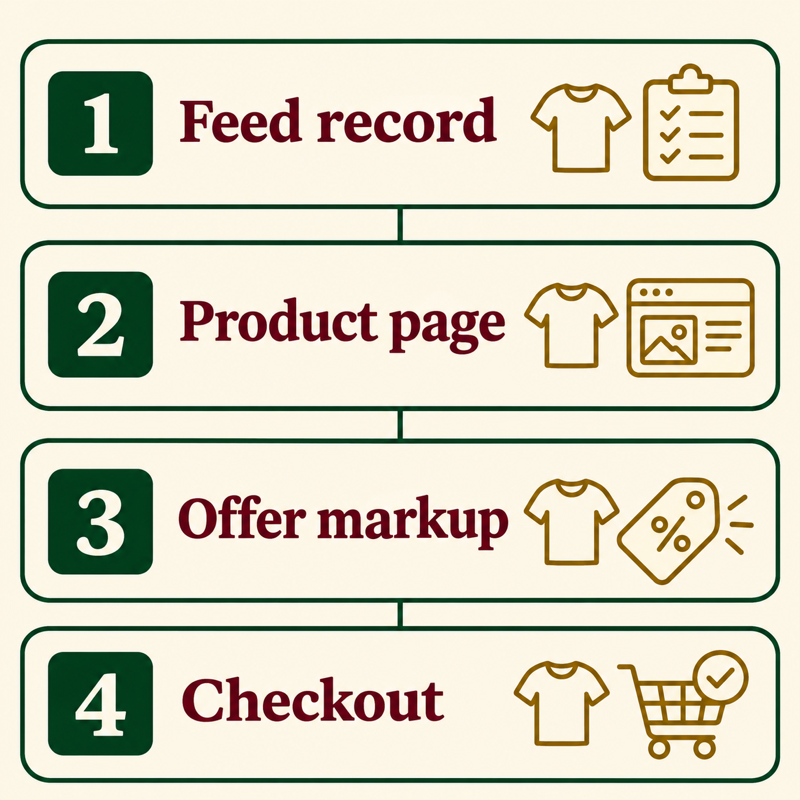
- Feed record: Look up the exact offer ID. Record its processed availability and the last successful submission. Compare it with the export your feed app sent. If the export was correct but the processed value differs, inspect other data sources, rules or automatic updates before changing the store.
- Product page: Open the submitted link in a fresh mobile session. Before tapping anything, note the selected size and colour, stock message and buy button. A page that opens on the first available size can look perfectly healthy while failing the advertised variant. See Google’s landing page requirements.
- Offer markup: Ask the developer to inspect the product offer in the page’s structured data. Match the offer to the selected variant. A parent product with one available size can produce an “in stock” message in markup even when the selected size is sold out.
- Checkout: Add the same variant and quantity to the cart and enter a PIN code the store advertises delivery to. Stop before payment. Record whether the block is stock, delivery coverage or an unrelated checkout error. A payment failure alone is not evidence that inventory is wrong.
Which fix belongs to the catalogue team, and which belongs to the developer?
Wrong variant on arrival: Suppose, hypothetically, a Mumbai clothing store has a green shirt in size M but no size L. The size-L offer correctly says sold out. Its link opens size M, so the shopper sees “Add to bag.” Changing L to in stock would promise a shirt the merchant cannot supply. Fix the variant link or default selection; then open both links on mobile and verify that each preserves its size. This is a storefront implementation problem.
Right variant, stale feed: If the last unit sold at 11:15 IST and the website immediately disabled checkout, look at the next processed inventory export. An export generated at 10:00 cannot know about the sale. Check generation time as well as upload time: sending the same old file more often will not fix it. The catalogue team should align stock changes with feed generation and monitor failed submissions.
Stock exists but cannot ship: A unit on a shop floor is not necessarily available to an online buyer. If checkout rejects the tested PIN, establish whether the location is intentionally excluded or whether the delivery configuration is wrong. Check the delivery promise and shipping settings before marking the entire SKU sold out.
Orders are accepted for later: Distinguish a new product sold ahead of release from an existing product awaiting replenishment. For preorder or backorder, submit the appropriate availability date and communicate the expected timing on the page. A “notify me” form by itself is not an order. Use Google’s availability specification to choose a value that describes the actual offer.
How do you know the fix survived the next inventory update?
Keep a short incident record for each affected variant: offer ID | observed time and zone | feed value | selected variant | markup value | checkout result and PIN | owner | retest time. Add a similar unaffected variant as a control. If both break after a theme release, look for shared template behaviour; if only one fails after a restock, start with the item mapping or stock export.
After correcting the source, check the next processed submission and the item’s current status. Repeat the four checks after the next genuine inventory change. Track how many of the original affected offers still show the issue and whether it returns. Keep offer eligibility separate from campaign performance: a product that becomes eligible again may still receive few impressions or orders.
Frequently asked questions
Why does Merchant Center show a mismatch when the page looks right?
The comparison may have happened before a restock, or your browser may have remembered a different size. Use the recorded timestamp and open the submitted URL in a fresh session before changing anything.
Should I mark an item out of stock to stop advertising it?
No. If customers can still order it, that value misstates availability. Use an appropriate campaign or destination control for the advertising decision, and reserve stock status for what the shop can fulfil.
Should I turn off automatic item updates?
First identify which value was wrong. If the site is correct and the feed lags, repair the feed timing. If the page’s markup is wrong, correct it. Switching updates off does not resolve either disagreement.
What if hundreds of sizes are affected?
Group offers by template and inventory source. Test a failing and a healthy variant from the same group. Apply a shared change only when you can reproduce the same failure, then spot-check multiple products before extending it.
Does an unavailable delivery PIN mean the product is sold out?
Not necessarily. Try a destination your shipping settings explicitly cover. Record a shipping restriction separately from a stock rejection so the right team gets the ticket.
Do I need to change my Google Ads bids?
A bid change cannot make an unorderable variant available. First verify the offer and its eligibility. Then examine spend, clicks and purchases for that group in a comparable period before making a budget decision.
If the same variants keep dropping out of Shopping, Digi Amenity’s Google Ads team can trace an affected offer from Merchant Center to checkout and identify whether the repair belongs in the feed, the storefront or the campaign.